

The Blanchard Exchange Learner Portal includes an option that allows users to archive courses. This provides greater flexibility in managing course visibility, including the ability to hide courses that are no longer relevant or are of lower priority.
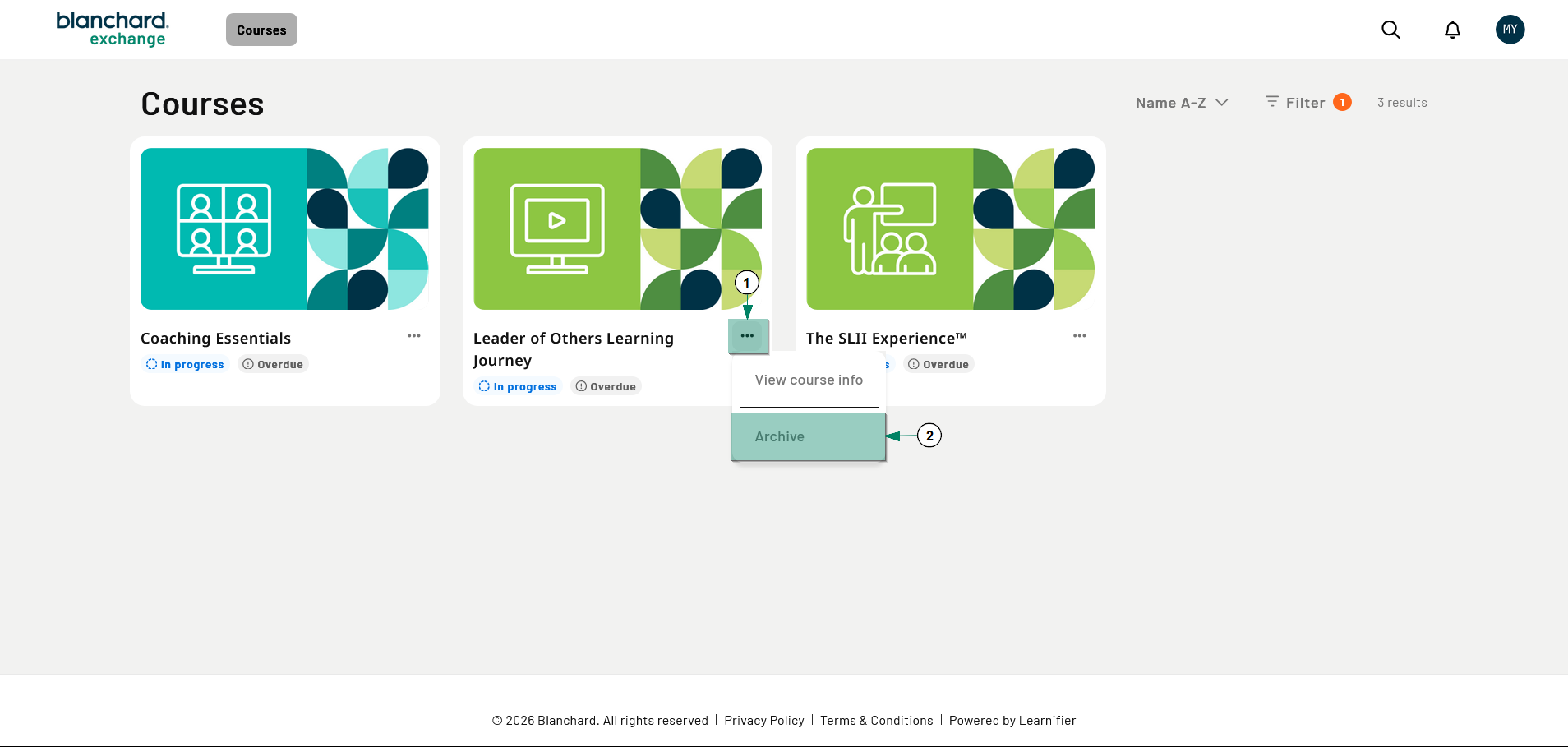
Figure 1
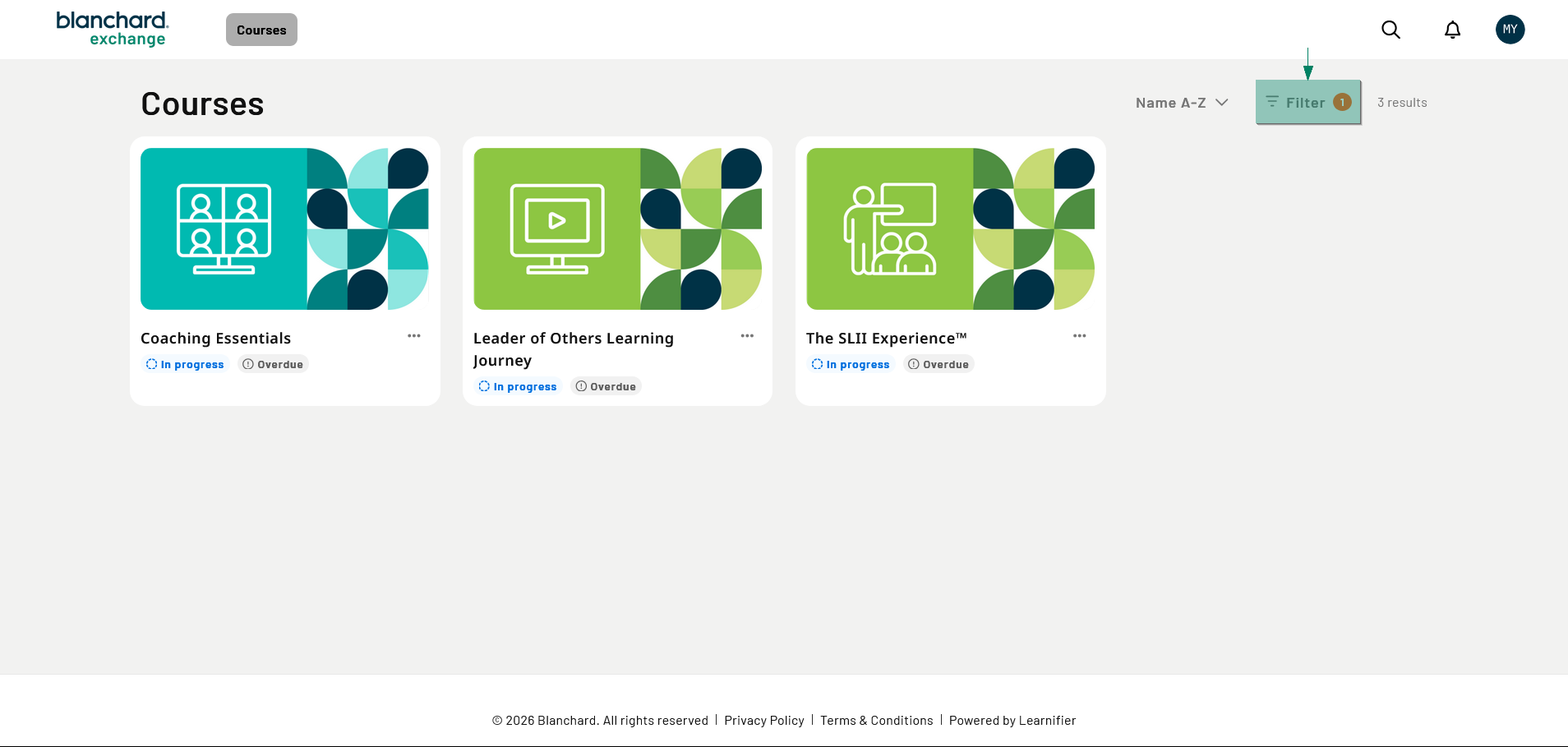
Figure 2
To archive a course, locate the course on your Learner Portal home screen. Once you find the course:
Select the three dots on the course tile (Figure 1-1).
Select the Archive option (Figure 1-2).
Confirm that you want to archive the course by selecting the Archive button on the confirmation screen.
To access a course that you have archived, select the Filters button (Figure 2) and change the Status filter to Archived. Courses that have been archived remain accessible and interactive while viewed under this filter.
To unarchive a course, locate the course while viewing the Archived filter and:
Select the three dots on the course tile.
Select the Unarchive option.
Confirm by selecting the Unarchive button on the confirmation screen.