

Blanchard Exchange allows you to upload custom files into your Corporate Portal. These custom files can then be inserted into your project’s courses, course templates, and can also be set up for direct link access for use within your email templates.
Here are some examples of files you may upload:
A Word document containing a letter from your company president detailing why this training is important to your organization
A PDF hotel flyer with details about a training location
A PowerPoint file outlining a learning journey with specific goals and outcomes
An Excel file containing data relevant to the training
A SCORM 1.2 package containing eLearning assets

Figure 1
There are currently no limitations on the file formats you can add to your account.
To add a file to your library, start by selecting the Library tab from the main navigation, followed by selecting the Materials sub-option (Figure 1).
Folder Management
The Library allows you to organize your content into folders and subfolders. If you prefer not to create folders, you can bypass this step and upload files directly into your main directory.
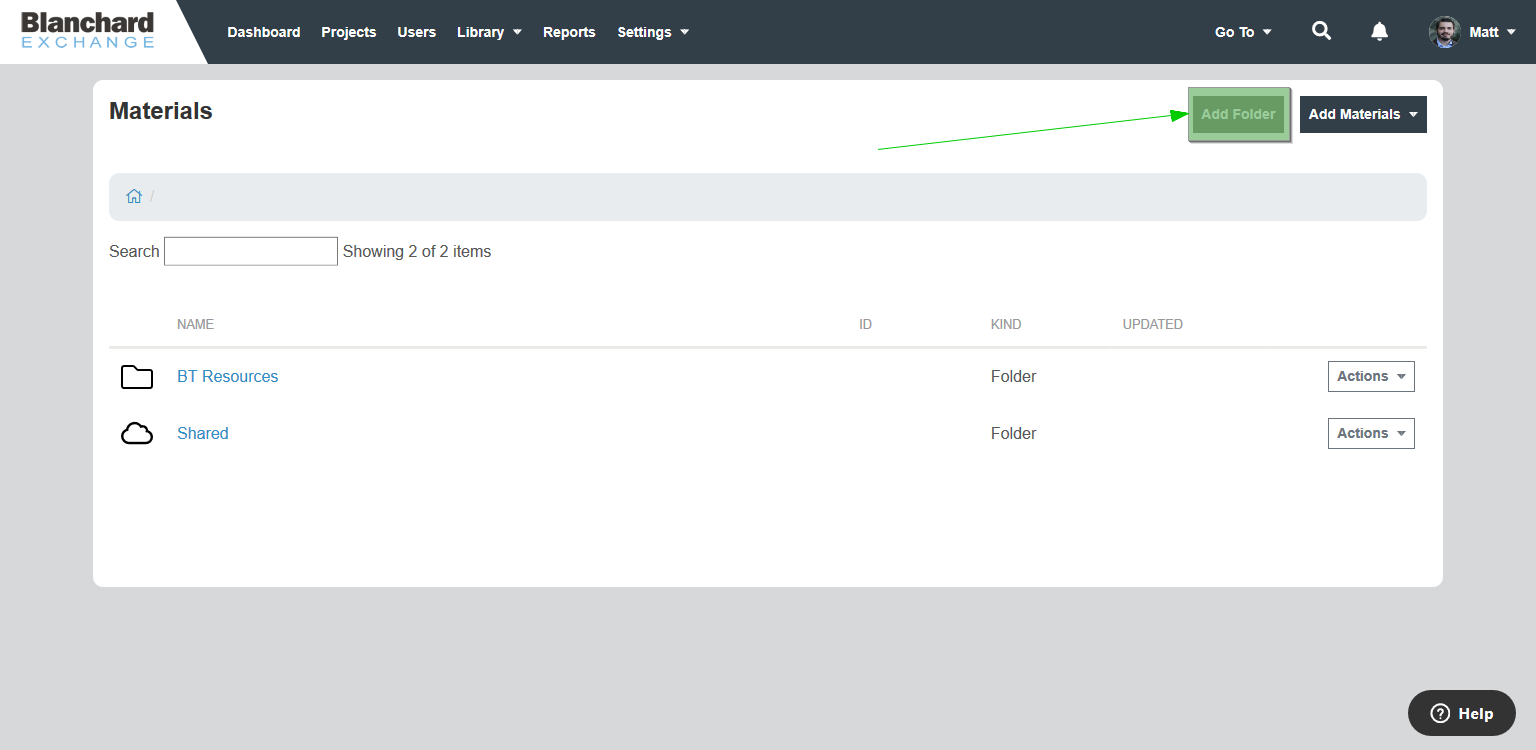
Figure 2

Figure 3
To add a folder, select the Add Folder option in the upper-right corner of the screen. A new window will open—enter a folder name and then select Add Folder (Figure 2).
Existing folders can be renamed, moved to other folders, or deleted. To access these options, hover your mouse over the folder and select the Actions menu to the right of the folder (Figure 3).
Note that to delete a folder, you must first delete all contents within the folder (uploaded files, subfolders, etc.) before the folder can be removed.
Uploading Files

Figure 4
To upload a file into the library, navigate to the folder where the file should be stored. Select the Add Materials option in the upper-right corner of the screen (Figure 4). You will be presented with the following options:
Document – Select this option for general files added to your library. This option supports all file formats, not just documents.
Image – Upload an image that can be incorporated into your courses.
SCORM – Upload content packaged using the SCORM 1.2 eLearning integration standard. See the SCORM uploads details below.
CMI5* – Upload xAPI content packaged using the CMI5 standard.
xAPI* – Upload content using xAPI as the integration standard.
Text/HTML – Create a text or HTML component that can be inserted into custom courses.
Diploma – Upload a static PDF completion certificate to attach to courses.
Internet Video – Insert a link to a streaming video from sources such as YouTube or TED.
Image from Unsplash – Search for and select a royalty-free image from Unsplash for commercial use.
Weblink – Insert a URL linking to an external web resource.
*Note: Blanchard Exchange tracks completion using a Not Started, In Progress, and Completed format only. Additional tracking details typically associated with these standards are not currently available.
Modifying Files in the Library

Figure 5
Each file uploaded to the library includes additional options. To access these options, hover your mouse over the file name and select the Actions menu to the right of the file (Figure 5):
Preview – Opens the file for viewing
Rename – Renames the file title within the Library*
Move – Moves the file to a different folder in the Library
Delete – Deletes the file from the Library
Copy – Creates a copy of the file and prompts you to select a destination folder
You can also select multiple files and perform bulk actions using the same options above. Select the files you wish to modify, then choose Move, Copy, or Delete from the options above the materials list.
You can modify a file's title and also add a description when inserting it into a course template. For details, see the Working in the Course Builder tutorial. To jump to the specific details around changing titles and descriptions within the Course Builder, see the Activities section within the tutorial.